Order Management
Part of Third-party fulfilment technology
Evaluating a 3PL's merchant portal
Use staff tasks to assess a 3PL portal’s search, permissions, order states, exceptions and exports.
Evaluate a 3PL’s merchant portal against the tasks staff need to perform: find an order, understand its last confirmed stage and take the next permitted action. A home-screen demonstration does not show whether an exception can be resolved.
Start with staff tasks and permissions
List the work the merchant expects to do without contacting the 3PL: find a customer’s order, request a hold or correction, check a receipt, examine an exception and retrieve tracking. Include staff who need reports but should not edit live orders. Ask the provider to show the roles proposed for the merchant’s account.
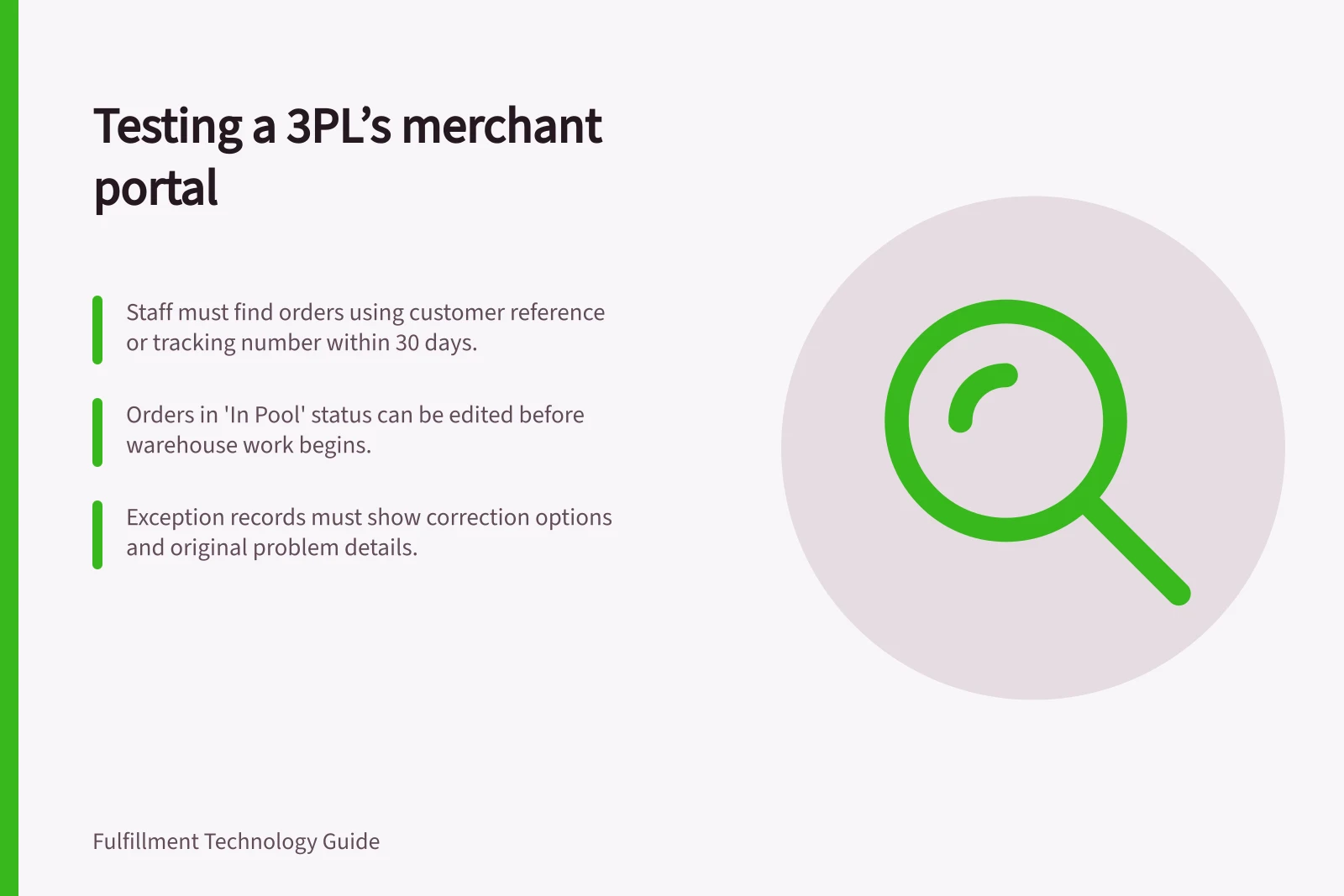
For each task, record whether it is self-service, needs a support request or becomes unavailable once warehouse work begins. eStore’s Express editing guide says orders in its “In Pool” state can be edited.
Its separate order-detail guide says an exception order can be edited to correct the underlying problem while it is still “In Pool” and the warehouse has not started. Do not reduce these documented routes to a single rule that all other states are editable or that every merchant role has permission.
Order Editability by Status in eStore Logistics Portal
- In Pool
- Editable (can correct exceptions)
- In Process
- Not editable (editing options removed)
- Closed
- Not editable
Follow an order through the screen
Use an anonymised two-line order and ask staff to locate it from the reference customer service actually receives. Check for the source reference, products and quantities, delivery details, provider order ID, status history and parcel or tracking references. If the order is split, can staff see what remains unfinished?
Ask what each displayed stage proves. Express gives “In Process” and “Closed” as examples of warehouse statuses shown after editing options are removed. Ask where the proposed account shows evidence of handover and how staff investigate when it is missing.
Give the order an exception. Express documents Exception Type and Exception Description fields, and says an exception order can be corrected while it is still “In Pool” and the warehouse has not started. Ask the provider to show the corresponding record, the permitted correction and the point at which work resumes. Check whether support staff can still see the original problem.
Order Lifecycle and Action Points in eStore Logistics Portal
- Order Created
- In Pool – edit allowed
- Exception Raised
- In Pool – can be corrected before warehouse work begins
- Warehouse Processing Started
- Status changes to In Process – no edits permitted
- Order Closed
- Final state – no further actions possible
Check search and export against real enquiries
Ask staff to find an order by customer reference or tracking number, then find an older order. Express documents a default search covering the last 30 days and an archival search for older orders.
Use the same short task list in each demonstration:
- Find a current order and identify its next action.
- Find an older order and its shipment reference.
- Find orders in one exception category.
- Export the columns needed for a merchant review.
- Show what a read-only user and an authorised editor can do.
Record missing fields, manual hand-offs and functions that depend on configuration. A portal fits when responsible staff can reach the underlying record and either act within their authority or pass a complete case to the 3PL. Assess the meaning and timing of stock quantities separately from portal navigation.
Search and Export Capabilities in eStore Logistics Portal
- Default Search Range
- Last 30 days
- Archival Search Available
- Yes (for older orders)
- Export Columns Supported
- Customisable for merchant review
- Read-Only User Access
- Can view but not edit