
Carrier Integrations
Shipping software and carrier integrations
Assess carrier services, booking rules, label recovery and tracking when choosing shipping software for an Australian fulfilment operation.
Shipping software should help a fulfilment team book an eligible carrier service, produce a label and follow the parcel after dispatch. Shippit and Starshipit are named shipping platforms; Starshipit connects Maropost, formerly Neto, with multiple carriers. A carrier listed in an integration directory does not establish that every service or feature is available to your account.
Follow the order through dispatch
Start with representative orders: a standard parcel, an express order, a regional destination, a multi-parcel order and, if relevant, an international shipment. For each, trace the delivery address, dispatch location, packed weight and dimensions, customer promise and handling requirements into the booking request. Identify who can correct each value before a label is created.
Keep booking, label creation, carrier pickup and delivery as separate events. A tracking number may exist before the carrier has the parcel. Decide which event updates the customer and which requires staff review.
Check the integration route
Compare the exact carrier service by origin, destination, parcel limits, account requirements, labels, documents and tracking. Ask whether it uses your own carrier account or a platform arrangement, and check the billing for that route.
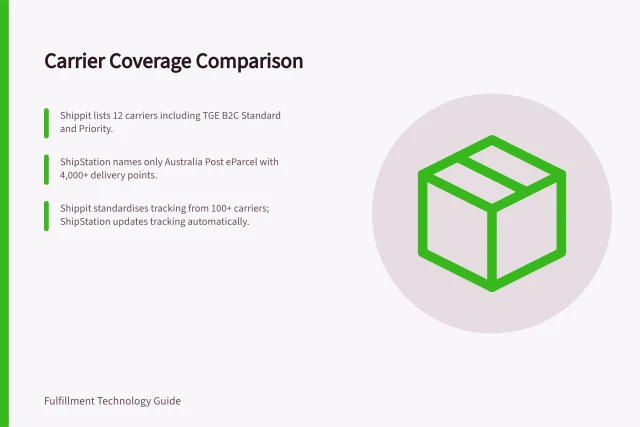
Starshipit says its Maropost integration connects with Australia Post, Aramex, CouriersPlease, NZPost, Royal Mail, DPD, DHL Express and DHL Commerce, among many more carriers. Starshipit also describes connections to 100+ platforms and couriers; check which services are available for your account.
Shippit’s onboarding guide says the carrier account manager provides all carrier credentials and rate cards, and notes that credentials are likely to differ between dispatch locations. Confirm whether the connection uses your own carrier account or a platform arrangement, and check the billing for that route.
Features can differ between connections to the same carrier. Confirm which connection and services a provider currently offers your account.
Shippit’s onboarding process uses an account-information spreadsheet to prepare a statement of work and configure the account. Green tabs are required to create the account; yellow tabs are optional at that stage but must be completed before the account can go live. The completed document goes to Shippit’s configuration team, with the account manager copied in.
Treat carrier credentials as location-specific setup data: Shippit notes that credentials are likely to differ between dispatch locations. Its onboarding guide identifies the carrier account manager as the person to provide credentials and rate cards, and finance or accounts as the source for the billing email and ABN. Confirm who owns each input before configuration begins.
Starshipit describes its Maropost connection as a flow for importing orders, creating labels, choosing carriers, dispatching orders and sending tracking updates. For supported integrations, it can write tracking details and fulfilment updates back to Maropost; exact fields depend on the setup.
Check rules and failure recovery
Write service-selection rules so staff can explain why a service was chosen or an order was held. Check destination and parcel eligibility before applying cost preferences, and preserve the customer’s delivery choice.
Shippit documents two rule levels: company rules apply before store rules, while store rules can fine-tune allocation preferences for individual stores. Company rules can apply across stores and can only be edited by head office administrators; store administrators and head office administrators can edit store rules. Check how the platform uses the data available when each rule runs.
A failed label request needs a visible owner and outcome. Record the parcel, selected service, error and any shipment or tracking identifier. If the result is unclear, inspect existing shipment records before booking again. A printer failure may call for a reprint of an existing label; a rejected booking needs a different correction.
Starshipit’s Maropost add-on lists single or batch label printing and return labels for thermal or A4 printers. Confirm the printer setup your team needs, and distinguish a print failure from a rejected booking.
Carrier allocation rules can use parcel dimensions and product information as well as weight and destination. Shippit gives bulky orders assigned to a particular carrier and fragile items handled with extra care as examples of decisions that can be automated; check that the relevant order data is present when those rules are applied.
Rules can also determine which documents are attached to orders. Shippit describes document-attachment conditions based on delivery destination, SKU and product information, including use for cross-border and international shipping. Check the resulting documents for the relevant order types, rather than treating carrier allocation as the only rule output.
Company rules vs store rules
- Company rulesApply before store rules; can apply across stores; only head office administrators can edit.
- Store rulesCan fine-tune allocation preferences for individual stores; store administrators and head office administrators can edit.
What to do when a label request fails
- Give the failure a visible owner and outcome
- Record the parcel, selected service, error and any shipment or tracking identifier
- If the result is unclear, inspect existing shipment records before booking again
- For a printer failure, reprint the existing label
- For a rejected booking, apply a different correction and rebook
Check what tracking can prove
Keep the platform shipment ID and carrier tracking ID with the parcel. Preserve carrier events when mapping them to customer-facing states. Australia Post’s status definitions distinguish preliminary states from transit and delivery; for StarTrack, “Delivered” can cover some or all freight items, while “Delivered in Full” covers all of them.
The Australia Post status reference applies when its API is called with an Australia Post consignment note, Australia Post Article ID or StarTrack Article ID. Confirm whether the platform provides proof-of-delivery photos for the relevant carrier and service. Give staff a way to investigate missing scans, delivery exceptions and parcels whose status conflicts with the order view.
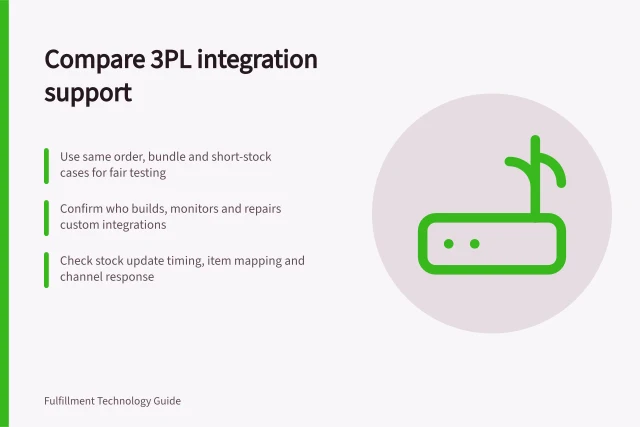
For a shortlist decision, ask each provider to show booking, label correction, hand-off and tracking for the same representative orders. Record account and plan dependencies alongside the staff work needed to resolve exceptions.
Australia Post defines “Created” as shipment items created but not finalised in an order; “Sealed” as the shipment added to an order; and “Initiated” as items finalised that will be delivered when Australia Post receives the parcels. These states describe different stages and should not be presented as equivalent to transit.
“Unsuccessful pickup” means Australia Post could not collect the items, while “Held by courier” and “Cannot be delivered” identify a carrier hold or an address-related delivery problem. “Possible delay” indicates a delay is highly likely; Australia Post directs customers to its website or phone support on 13 76 78 (13 POST) for more information.
A shipment-level summary may not establish a single delivery state when its items have different statuses. Australia Post advises tracking individual items for detailed delivery information in that situation. For multi-item consignments, check whether the platform exposes item-level tracking before treating a shipment summary as proof that every item has reached the same stage.
Australia Post statuses that are not transit
- CreatedShipment items created but not finalised in an order.
- SealedShipment added to an order.
- InitiatedItems finalised that will be delivered when Australia Post receives the parcels.
- Unsuccessful pickupAustralia Post could not collect the items.
- Held by courierCarrier hold.
- Cannot be deliveredAddress-related delivery problem.
- Possible delayDelay is highly likely; Australia Post directs customers to its website or phone support on 13 76 78 (13 POST).
StarTrack delivery statuses
- Delivered
- Can cover some or all freight items.
- Delivered in Full
- Covers all freight items.
In this guide
- Comparing documented carrier coverage in shipping platformsCompare Australian shipping platforms by carrier service, account route, labels, tracking and documented limitations.
- Selecting delivery services using order rulesDesign service-selection rules around parcel eligibility, delivery promises, rule priority and clear holds for missing data.
- Handling failed label requestsTriage missing data, rejected services, printing failures and uncertain label outcomes while keeping the parcel tied to the correct booking.
- Reconciling tracking updates from several carriersKeep original carrier events, map parcel statuses carefully and investigate missing or conflicting tracking updates.