Packing and Dispatch
Part of Packing and dispatch systems
Preventing duplicate shipping labels during dispatch
A second piece of paper is not always a second shipment charge.
A reprint is another copy of a label for an existing shipment. Creating a second shipment can mean buying another label, so check the shipment record and reprint the existing label when it is correct.
Give the parcel one active identity
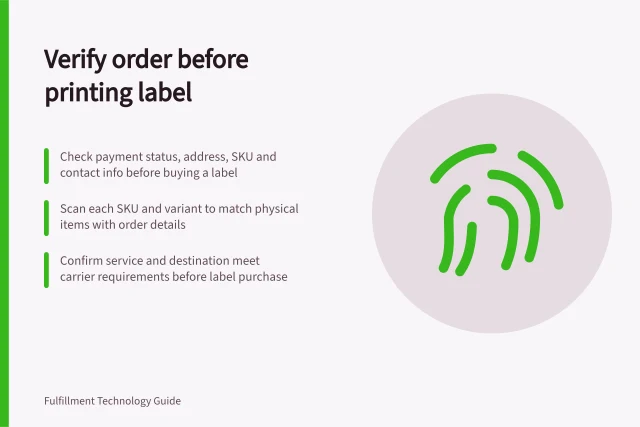
Before each print, check the shipment record for its current state, tracking number and label purchase time. If the correct label already exists, use its reprint action rather than creating a second shipment.
Scanning a parcel against its shipment record before dispatch can help confirm the right label is attached.
If Shopify’s print dialog stays open after a job, pause before clicking Print again: a user reported that the dialog remained onscreen and another click could waste label stock. Suggested workarounds included downloading the label first, trying Chrome or Firefox, checking Safari print settings, or, on Mac, unchecking Show Print Dialogue in system printer settings.
MyPost Business does not have a native ability to create multiple labels per consignment, but its app workflow can create multiple labels for separate packages or partial fulfilments. Use Reset order only when intentionally creating another label and fulfilment, as resetting returns the order to a state where this is possible.
In Shipium, an Administrator can open the Shipium Console and choose Carrier Selection > Bulk Label Void. Search by carrier tracking ID, Shipium Shipment ID, Shipium Label ID or Carrier Selection ID, review the matches and select the unused label to void; identifiers can also be uploaded in a .txt or .csv file, one per line.
In ShipAccel, open Shipping > Shipping & Postage History, select the arrow beside the shipment, choose Cancel Label and confirm. If the carrier’s void period is open, the label is marked Voided; if it has expired or the carrier does not support voiding, it is marked Cancelled by User and removed from active or shipped lists.
Create a replacement shipment only when the existing one must be replaced. Record why the old label is being replaced, confirm its tracking identifier is no longer active in the shipment record, and keep the parcel aside until the replacement label is attached.
Label management across platforms: voiding and cancellation
- ShipiumBulk Label Void via Console; supports bulk upload of IDs (.txt/.csv); voids unused labels
- ShipAccelCancel Label via Shipping & Postage History; status changes to Voided (if within void window) or Cancelled by User
- MyPost BusinessNo native support for multiple labels per consignment; app workflow allows separate labels for partial fulfilments
- ShopifyAvoid re-printing if dialog stays open; workaround includes downloading label or adjusting browser/system print settings
Reconcile at handoff
Compare the carrier manifest with the physical parcels: each manifest entry should correspond to a parcel and shipment record, and each parcel should be listed on the manifest. Keep any extra printed copy off the parcel and attach only the label tied to the active shipment.
Investigate an order with two tracking numbers or a label with no parcel. Hold the mismatch until the shipment record and parcel agree; an extra printed copy alone does not show that a second shipment was purchased.
After a printer outage or shift change, review orders with multiple tracking numbers, labels without parcels, and replacements whose old tracking identifiers remain active. Hold affected parcels, resolve the shipment record, then attach only the label tied to the active shipment.