Order Management
Part of Fulfilment technology implementation
Testing a complete order before system launch
Trace a test order through the selling channel, warehouse, parcel and returned status, including a controlled exception and a clear pass decision.
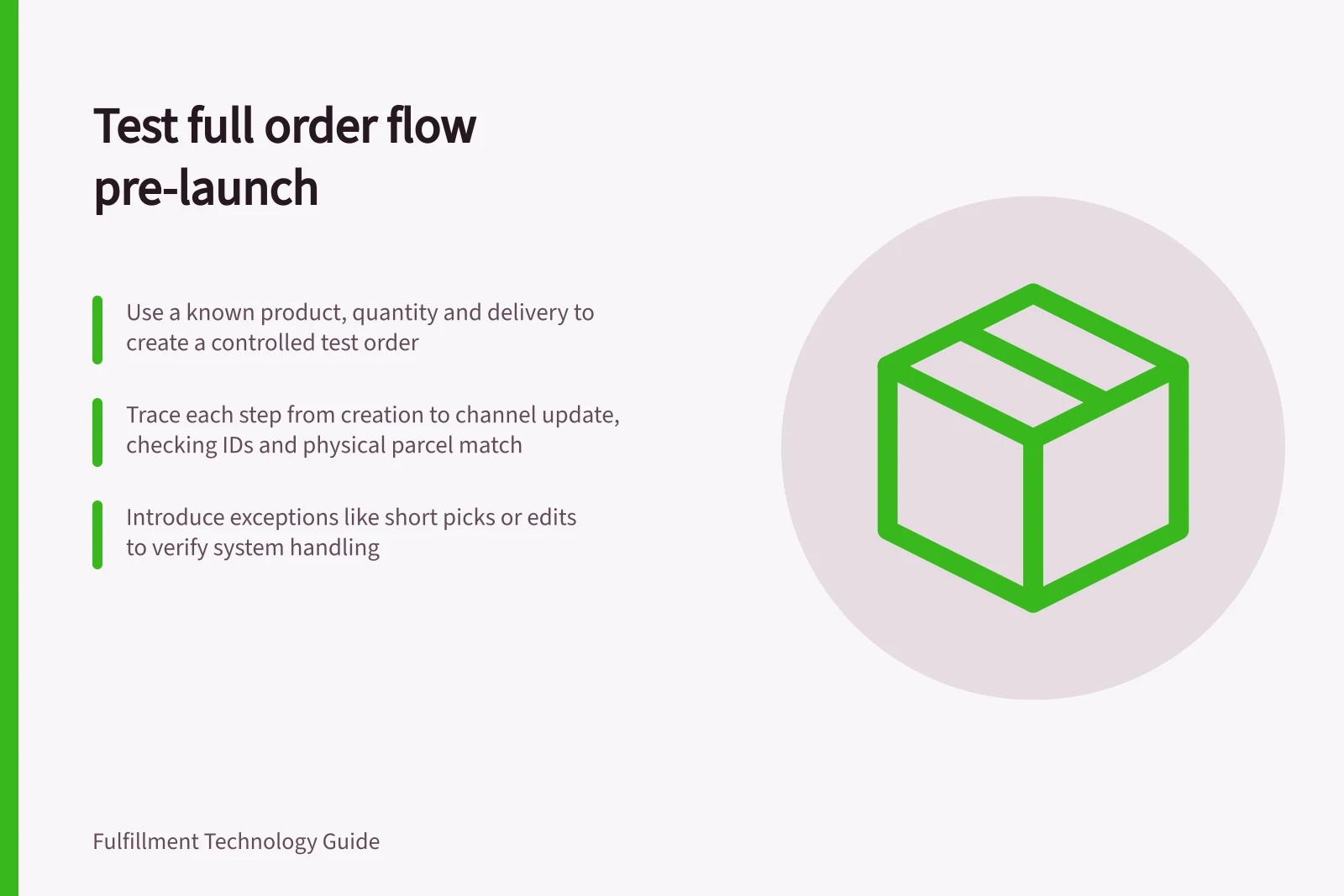
Test a complete order by tracing its order and line references from creation through warehouse work, parcel preparation, and the update returned to the selling channel. Record the expected result first. A success message at one step does not prove the next system received the right quantity or status.
Build a known-answer case
Use a controlled test route and an order that represents normal work: a known product and variant, quantity, delivery choice and destination. Give it a reference staff can find in every connected system. Record expected line quantities, stock source, parcel contents and final states. If staff handle physical test goods or labels, keep them out of ordinary dispatch.
Check how the chosen test route affects customers and connected services. Shopify's payment test mode prevents live card orders while active, and simulated test orders do not appear in payouts or reports. Shopify advises deactivating live payment providers and activating test mode before placing test orders, then deactivating test mode as soon as possible after testing so that customers can place orders. A Shopify test order therefore needs an agreed containment plan; it does not automatically test the warehouse or carrier connection.
Pros and Cons of Using Test Mode in Shopify
- ProsPrevents live transactions; safe for testing without affecting payouts or reports
- ConsTest orders do not validate warehouse or carrier connections automatically; requires separate verification
Trace the records
| Checkpoint | Evidence to retain | Question if it differs |
|---|---|---|
| Order created | Source order and line IDs, variant, quantity and delivery choice | Was the intended order accepted or held? |
| Warehouse received it | Instruction and acknowledgement, if available | Was a line rejected, changed or duplicated? |
| Work released | Work ID, source location and required quantity | Did the rules choose the intended stock? |
| Pick and pack | Actual item and quantity, exception and parcel ID | Does the physical parcel match the completed lines? |
| Shipment prepared | Service, shipment or label ID and tracking reference, if used | Was one intended shipment created? |
| Channel updated | Acknowledged line and order state | Does the channel reflect the physical outcome? |
Record names and available acknowledgements vary by platform. In Dynamics 365 Warehouse management, release to warehouse creates shipment records; wave configuration determines when picking work is created. The menu items that warehouse workers use in the mobile app are configured in Warehouse management. A completed record alone does not prove that each physical unit was scanned, so inspect both the configured action and the resulting record.
Testing a Complete Order Before System Launch
- Order CreatedSource order and line IDs, variant, quantity, delivery choice
- Warehouse ReceivedInstruction and acknowledgement (if available)
- Work ReleasedWork ID, source location, required quantity
- Pick and PackActual item and quantity, exception, parcel ID
- Shipment PreparedService, shipment or label ID, tracking reference (if used)
- Channel UpdatedAcknowledged line and order state
Introduce a controlled break
After the ordinary path, run an exception relevant to the operation. A short pick should leave the missing quantity visible to its order owner. An edit after warehouse release should reveal whether the instruction changes, is rejected or needs manual correction. Shopify warns that some fulfilment apps might not recognise order edits, so a Shopify-connected setup needs this case checked in its own configuration.
If the shipping connection permits a safe simulated failure, interrupt a label response. Look for an existing shipment or tracking ID before any retry, and record whether the parcel is held or the original label can be recovered. The result must come from the configured system; documentation cannot predict it.
Controlled Exception Testing Steps
- Run a short pick to leave missing quantity visibleVerify order owner can identify discrepancy
- Edit order after warehouse releaseCheck if instruction changes, is rejected, or requires manual correction
- Simulate failure during label generationConfirm whether existing shipment or tracking ID is retained
Make a pass decision
For each case, retain the input, expected result, actual records, configuration, operator, issue owner and correction. Pass only when the physical outcome and required system records agree. Block the case when an acknowledgement is missing or a quantity remains unexplained, even if the parcel appears correct.
Rerun an affected case after a fix, and rerun the ordinary path if the changed setting touches it. Record the operations owner's decision on the tested configuration and unresolved conditions. The separate cutover rehearsal must still account for live opening stock and work already in progress.